Free ATS-Friendly Resume Templates for Google Docs (2026)
Free doesn't always mean parser-safe, and official doesn't always mean simple. This guide breaks down which of Google's five built-in resume templates clear ATS screening, how to build one that will if none of them fit, and how to export it so the formatting holds.


Audio and video are AI narrations of this article.
Free ATS-Friendly Resume Templates for Google Docs (2026)
Narrated version · 8 min
Key Takeaways
- Google Docs ships five built-in resume templates (Swiss, Serif, Coral, Spearmint, Modern Writer); two of them, Serif and Coral, lean on two-column layouts that can scramble parsing.
- Swiss and Spearmint are the two Google-native templates most consistently confirmed as single-column, making them the safest default picks for a portal submission.
- Four free routes to an ATS-safe Google Docs resume exist: Swiss, Spearmint, Jobscan's dedicated Google Docs template library, or a blank single-column document built from scratch.
- Contact details belong in the document body, not a header or footer, since several major ATS platforms, including Greenhouse, ignore header and footer content entirely.
- Export via File > Download as PDF or DOCX, matching whichever format the job posting requests, and keep the file under roughly 2.5 MB to avoid common parsing failures.
- Passing the parser only gets a resume into the searchable pool; it still needs to be tailored to each job, sized correctly, and written with achievement-focused bullets to actually get a response.
Four free options give you an ATS-safe resume in Google Docs: Swiss and Spearmint from Google's own template gallery, Jobscan's dedicated Google Docs library, and a blank single-column document you build yourself. Google's gallery actually includes five built-in templates in total, Swiss, Serif, Coral, Spearmint, and Modern Writer, but Serif and Coral lean on a two-column layout that can scramble your work history the moment a parser reads it. "Free" and "official" don't automatically mean "ATS-friendly."
That gap explains a common, frustrating pattern: you pick an official Google template, keep the content honest, apply to a dozen roles, and hear nothing back. The template itself usually isn't the problem. The specific layout choice inside it often is. This guide covers which of Google's built-in templates are safe to submit as-is, how to build a clean one from scratch if none of them fit, and how to export it so the formatting survives the trip into an employer's applicant tracking system.
Why “Free” and “Official” Don't Guarantee an ATS-Safe Template?
Two of Google Docs' five built-in resume templates lean on a two-column layout, and most applicant tracking systems read a document as a single left-to-right, top-to-bottom stream of text rather than a visual grid, so a two-column design can interleave your job title from one column with a date from another mid-sentence, which Jobscan calls text-layer scrambling. The parser doesn't see the page the way you do. It reads the underlying code in the order it was written, not the order it appears on screen.
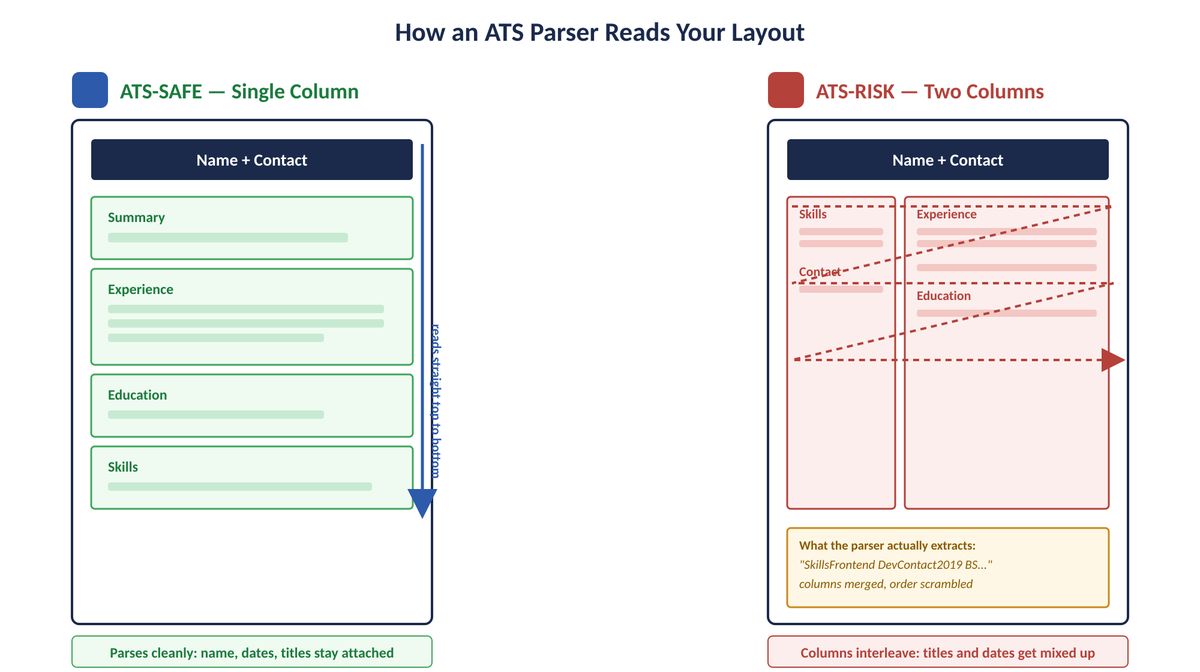
Single column reads top to bottom in one clean pass. Two columns force the parser to jump between blocks, which is what interleaves your job titles, dates, and skills.
The stakes for getting this wrong are higher than most job seekers assume. Jobscan's 2025 Applicant Tracking System Usage Report found that 97.8% of Fortune 500 companies use a detectable ATS, and mid-size employers are close behind. At the same time, Indeed Hiring Lab's 2026 US Jobs & Hiring Trends Report describes a cautious, selective hiring market where several white-collar sectors are seeing longer time-to-hire and more candidates competing for fewer openings. A formatting choice that quietly breaks parsing removes you from consideration before a recruiter ever reads your qualifications, in exactly the market where you can least afford that.
If you want to weigh Google Docs against other free and paid builders first, AIApply's roundup of ATS-friendly resume templates compares it directly against LinkedIn, Indeed, and VisualCV, and the guide to free resume builders online covers where Google Docs fits next to tools like OpenResume and Teal. This piece stays focused on getting the most out of Google Docs specifically.
The Five Formatting Rules Every ATS-Safe Google Docs Resume Follows
An ATS-safe Google Docs resume uses a single column, standard section headings, contact information in the document body rather than a header or footer, plain-text skill lists instead of tables, and a standard system font, because those are the five elements most parsers rely on to extract clean, structured data. Greenhouse, one of the most widely used applicant tracking systems, documents this directly: resumes with tables, headers, footers, text boxes, or columned layouts are named as specific causes of a failed or incomplete parse, along with files over roughly 2.5 MB and images uploaded in place of a real document.
Contact details are worth calling out on their own. Many people put their name, phone number, and email in a Google Docs header for a clean visual balance, but several major ATS platforms process only the document body and ignore header and footer content entirely. If your contact information lives there, the parsed candidate profile can end up with no way to reach you, even though the resume looks complete on screen. Choosing the right underlying structure matters as much as the formatting, and AIApply's guide to effective resume formats walks through picking chronological, functional, or combination layouts before you start filling in a template.
4 Free, ATS-Safe Resume Templates for Google Docs
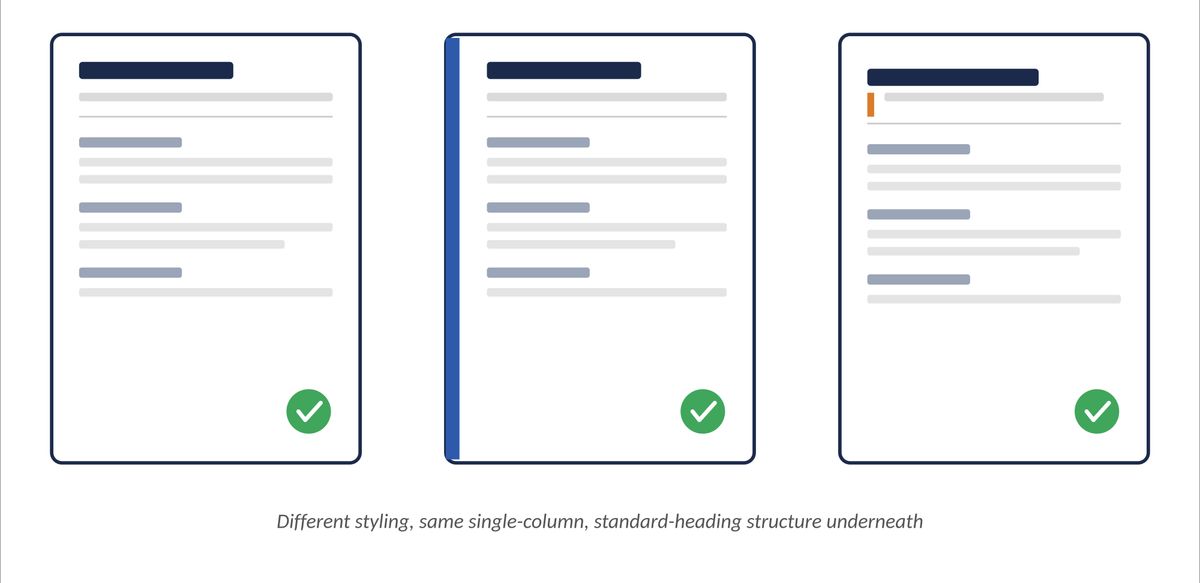
These four options are free, work inside Google Docs, and hold up to the five formatting rules above. Two live in Google's own gallery, one is a dedicated external library built specifically for Google Docs, and the fourth is a blank document you control entirely yourself. The wireframes below illustrate each option's described structure so you know what to look for; they're original diagrams built from published descriptions, not screenshots, since the live gallery can shift its exact styling over time. Confirm the current design yourself before you commit to one.
1. Swiss (Google's built-in gallery)
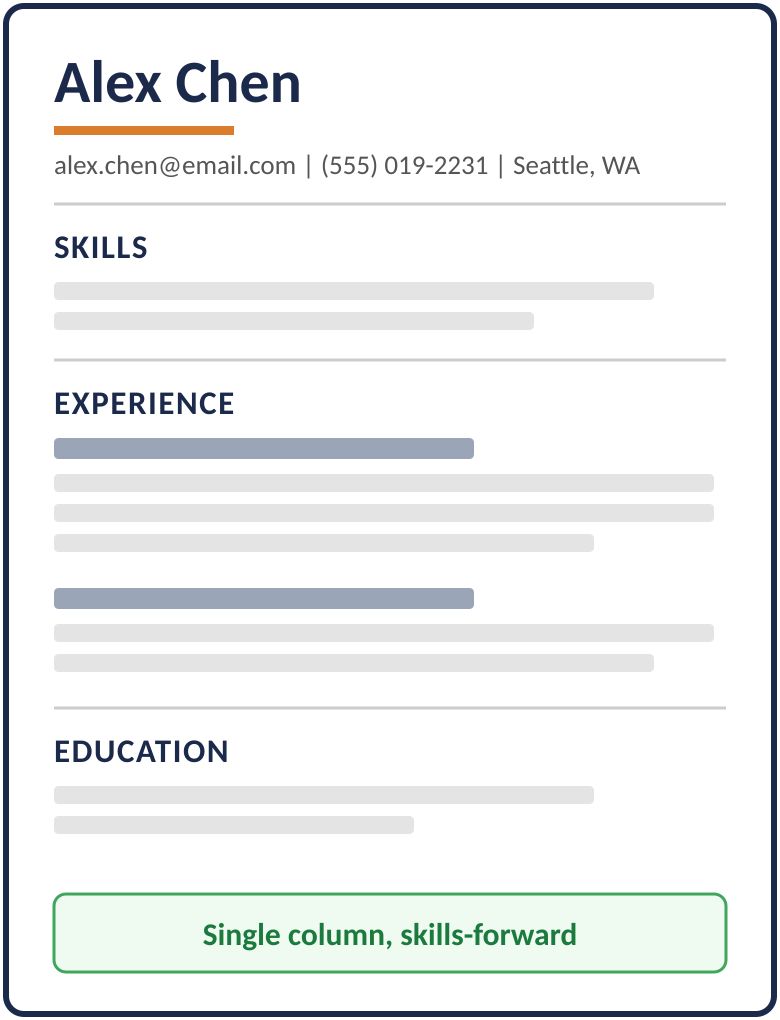
Swiss is the single-column option most consistently confirmed across independent reviews: a bold name header, thin horizontal dividers between sections, and a skills-forward layout that reads cleanly top to bottom. Open it from File > New > From template gallery > Resumes inside Google Docs. It's a solid default for most professional roles and experience levels.
2. Spearmint (Google's built-in gallery)
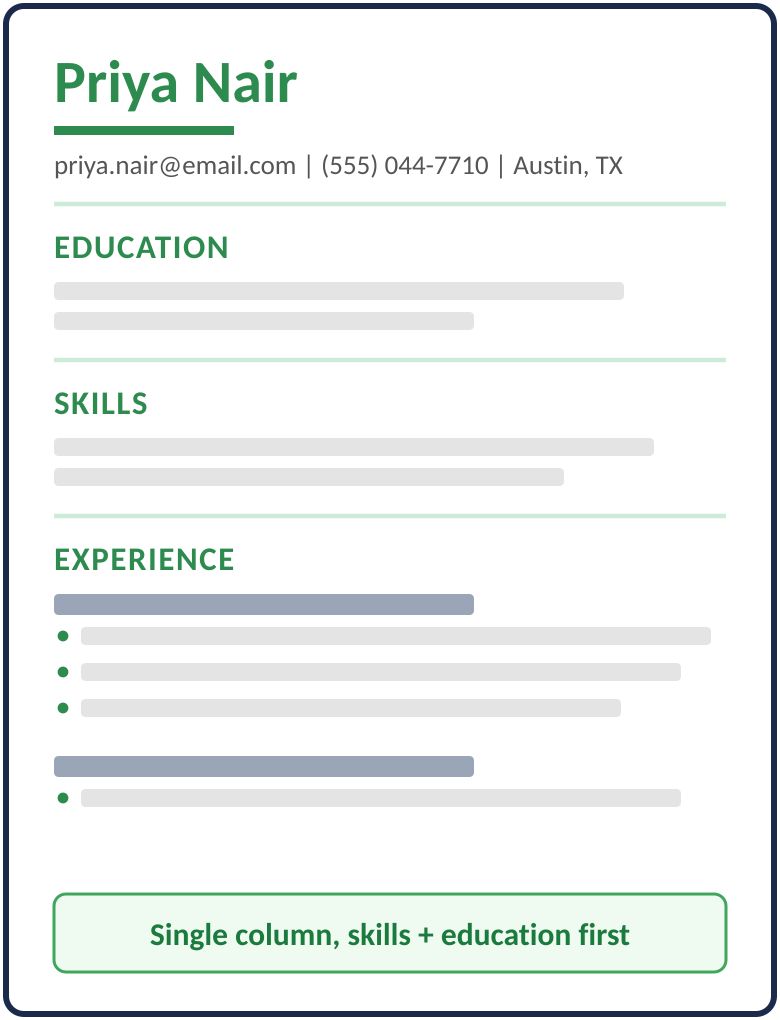
Spearmint uses the same single-column, top-to-bottom structure as Swiss with a light green accent on your name and section headers. It's most often recommended for students, early-career candidates, and career switchers because it puts skills and education front and center. Access it the same way, through the Resumes section of the template gallery.
The other two named templates in Google's gallery, Serif and Coral, are reported as two-column layouts by more reviewers than not, which is why they're left off this list. Treat them as a portfolio or direct-email option rather than a default for online applications, or manually remove the column formatting before you rely on either one for a portal submission.
3. Jobscan's Google Docs template library
If neither Swiss nor Spearmint fits your background, Jobscan's dedicated Google Docs resume templates give you more variety than Google's five native designs, built specifically to open and edit inside Google Docs and download at no cost. It's a useful second stop before you consider building from scratch.
4. A blank, single-column build
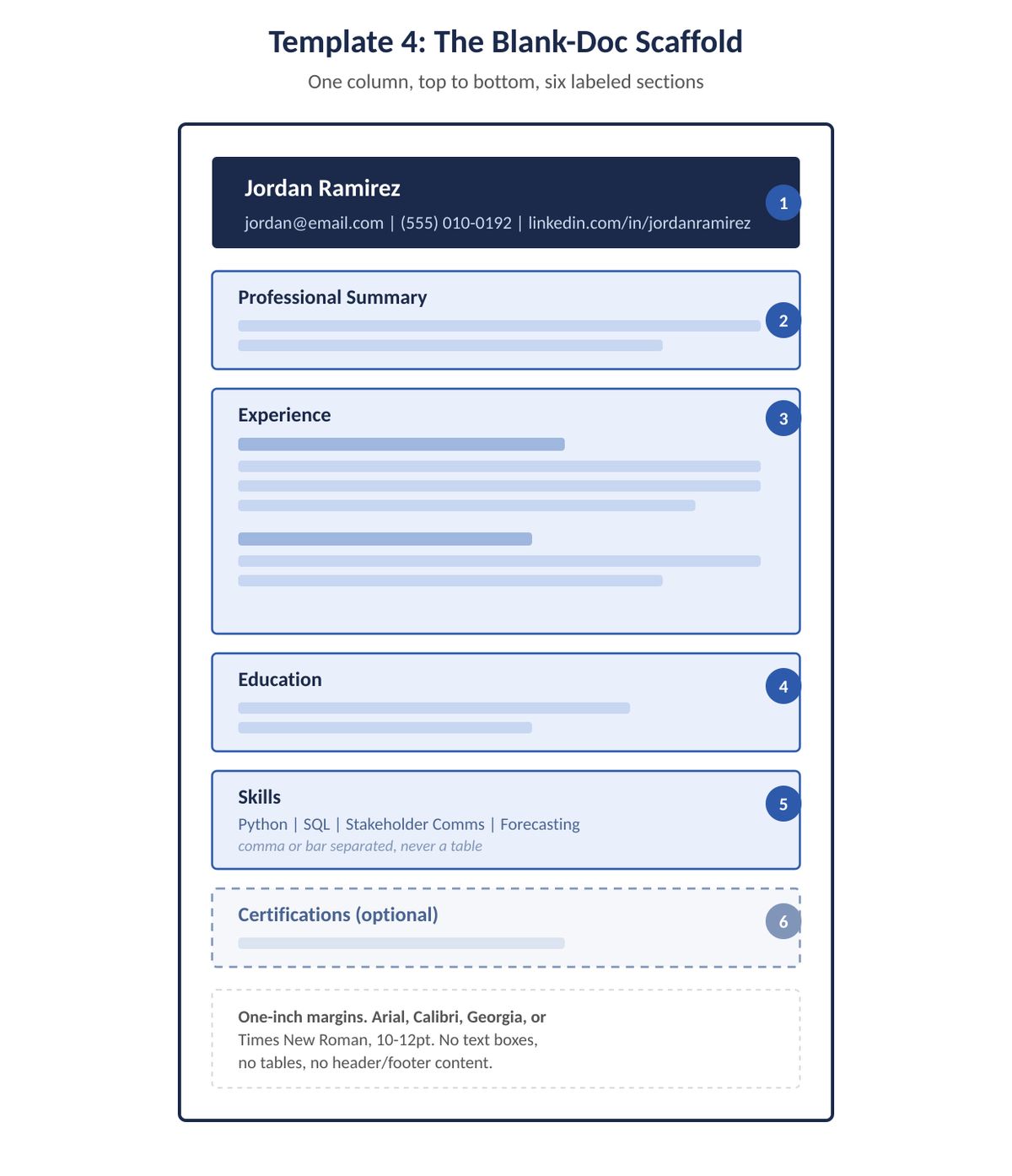
Starting from a blank Google Doc is the only option where you control every element from the first line, so there's nothing to verify after the fact. It takes a little longer to set up than copying a template, and it's the most reliable option if your background doesn't fit neatly into any of the three above. The full six-step sequence, with the scaffold below, is next.
How to Build an ATS-Safe Resume in Google Docs From Scratch
A blank Google Doc built to the same five rules covered earlier will outperform a visually nicer template that a parser can't read correctly. Here's the full-size scaffold again, followed by the sequence:
- Start from a blank document. Open Google Docs and select a new blank file instead of a template, so you control every element from the first line.
- Set standard margins and a system font. Keep one-inch margins and use Arial, Calibri, Georgia, or Times New Roman at 10 to 12 points for body text.
- Put your name and contact block in the body. Name on its own line, then phone, email, city and state, and a LinkedIn URL as plain visible text, typed directly rather than placed in a header.
- Build each section with a bold, left-aligned heading. Use standard labels: Professional Summary, Experience, Education, Skills, and Certifications if relevant, in that order or reordered to lead with your strongest section.
- List skills as text, not a table. Separate them with commas, bullet points, or vertical bars instead of inserting a table or a grid of skill bars.
- Keep design elements minimal. Skip text boxes, icons, embedded charts, and multiple font colors. A single accent color used sparingly for your name is fine; anything that requires the parser to interpret a graphic is not.
How to Export Your Google Docs Resume Without Breaking the Parse
Use File > Download and choose either PDF Document or Microsoft Word (.docx). Google's own documentation confirms both export options live under that same menu. Both formats generally preserve a Google Docs resume's structure for most applicant tracking systems, but check the job posting first: some employers request one format specifically, and following that instruction matters more than any general preference.
Two practical export habits reduce parsing problems. First, keep the file size modest. Greenhouse's own parsing documentation flags files over roughly 2.5 MB as a common cause of a failed parse, and a Google Doc with large embedded images is the most likely way to cross that threshold unintentionally. Second, before you upload anything, copy the exported text and paste it into a plain-text editor like Notepad or a blank Google Doc set to plain text. If your name, dates, and section headings still read in a sensible top-to-bottom order once the formatting is stripped away, that's a strong sign the underlying structure is clean.
Test the Template Before You Use It on a Real Application
Before sending a Google Docs resume to any employer, run it through a dedicated resume scanner in addition to the plain-text paste test, since a scanner shows you exactly which fields a parser extracts rather than just whether the reading order holds up. AIApply's Resume Scanner runs that kind of formatting check and layers in a keyword match against a specific job description at the same time, so you catch a parsing problem and a content gap in a single pass instead of two separate steps.
Formatting is only half of what gets flagged during this kind of check. AIApply's guide to resume optimization techniques covers the keyword side in more depth, and AIApply's rundown of common bad resume habits is worth a look if your resume has been sitting unchanged for a while. Formatting problems and content problems tend to travel together, and a template swap alone won't fix the second one.
A Clean Template Gets You Parsed. It Doesn't Get You Hired.
Passing the parser only gets your resume into an employer's searchable candidate pool. From there, it still has to be tailored to each job's specific language, sized correctly for your seniority and target role, and written with achievement-focused bullet points, because ATS-safe formatting and strong content solve two different problems. A single-column Google Docs template with generic, duty-based bullets will parse cleanly and still lose to a candidate who tailored their language to the posting.
Length is part of that tailoring. AIApply's guide to how long a resume should be breaks down expectations by seniority and notes that federal applications through USAJobs now cap resumes at two pages by rule, not preference. And once the structure is right, AIApply's resume bullet point examples show how to turn a flat duty description into a quantified achievement that both a recruiter and an ATS keyword match will notice.
This is where a single free template stops being enough on its own. AIApply's AI Resume Builder starts from ATS-tested layouts and adjusts the language for each role you're targeting, and Auto-Apply extends that same tailoring across a higher volume of applications without you rebuilding the document from scratch every time. A Google Docs template is a reasonable place to start your resume. AIApply is built for the ongoing work of keeping it accurate for every job you apply to next.
Where to Start
Pick Swiss or Spearmint if you want one of Google's own single-column templates, or build from scratch using the six-step structure above if neither fits your background. Either way, export it, run the plain-text paste test, and check it against a real job description with AIApply's Resume Scanner before it goes anywhere near a job posting.
Frequently Asked Questions
Are Google Docs resume templates ATS-friendly?
Some of Google Docs' five built-in resume templates are ATS-friendly and some are not, because the gallery mixes single-column designs with two-column layouts that can scramble parsing. Check the specific template's layout before you submit it to an online application, rather than assuming every option in the official gallery is safe by default.
Which Google Docs resume template is best for ATS?
Swiss and Spearmint are the two Google Docs templates most consistently built on a single-column layout, which makes them the safer starting points for applicant tracking systems. Confirm the layout yourself by opening the template and checking whether any content sits in side-by-side columns, since Google periodically updates its gallery.
Should I download my Google Docs resume as a PDF or Word document?
Download whichever format the job posting requests, and default to PDF Document if no format is specified, since both options live under File > Download and generally preserve a single-column Google Docs resume's structure. If a PDF export ever looks visually off, try the Word (.docx) format instead and compare which one parses more cleanly for that specific application.
Can I use a two-column Google Docs template if I really like the design?
A two-column Google Docs template is fine for a portfolio version, a direct email attachment, or a networking context where a person opens the file first, but it's a risk for any application that routes through an online portal. Keep a single-column version on hand specifically for those submissions.
How long should a Google Docs resume be?
Most Google Docs resumes should run one page for early-career candidates and one to two pages for experienced professionals, with federal applications through USAJobs now capped at two pages by rule. The right length depends more on your seniority and the role than on the template itself.
How do I know if my Google Docs resume actually parsed correctly?
Paste your exported resume into a plain-text editor and confirm your name, dates, and section headings still appear in a sensible top-to-bottom order once the formatting is stripped away. For a more thorough check, run the file through a dedicated resume scanner that shows exactly which fields, like job titles, dates, and skills, a parser extracted.